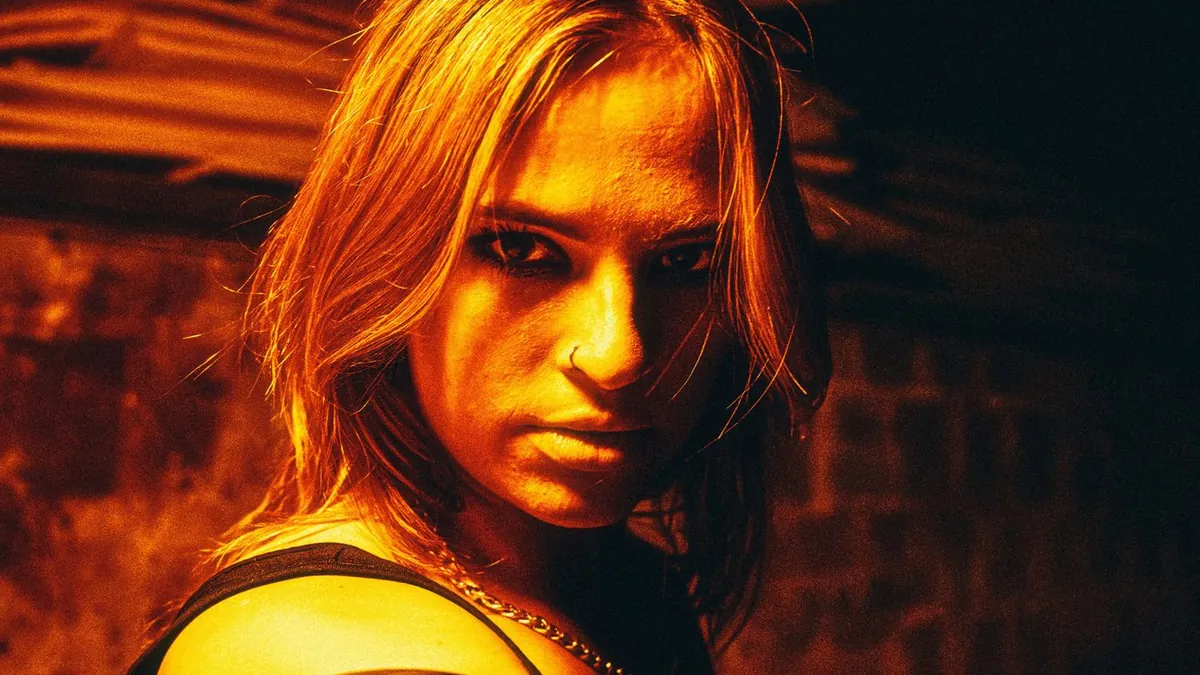
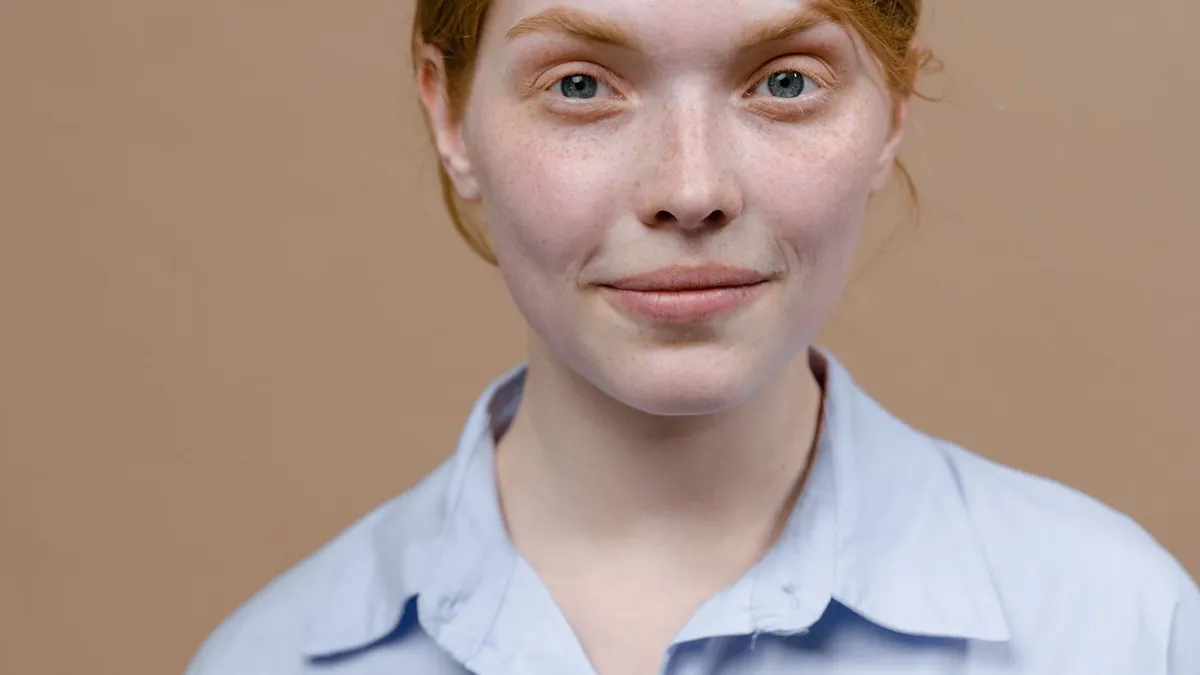
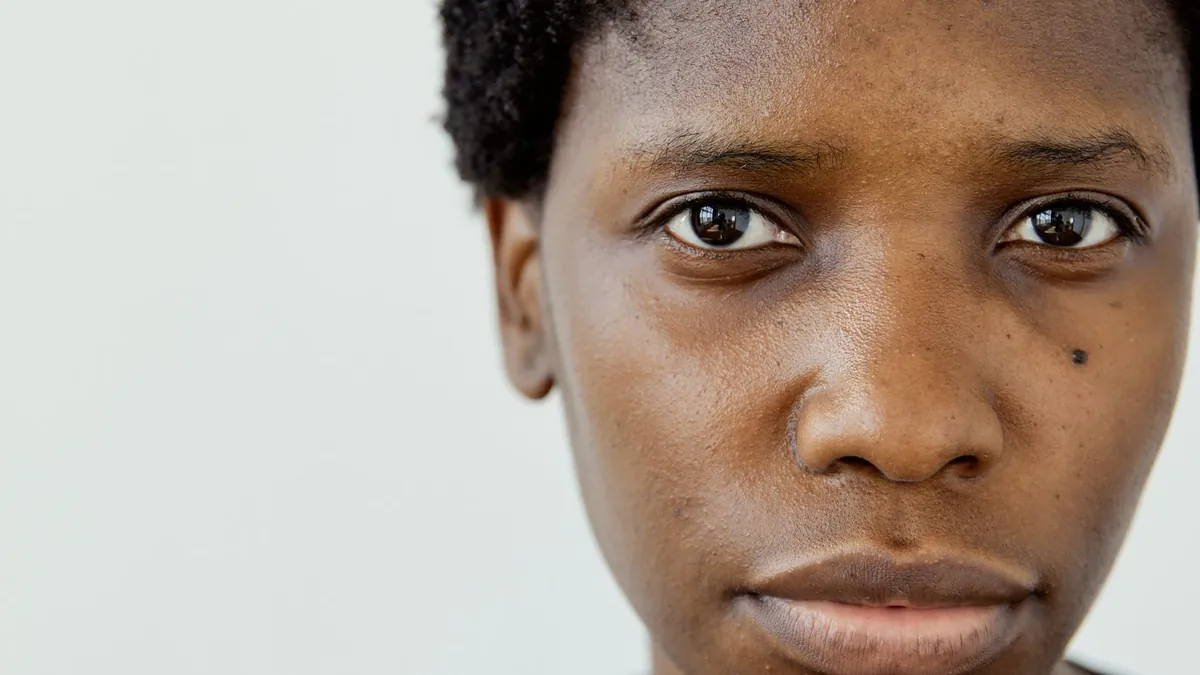
Why Does My AI Flash Photo Look Fake?
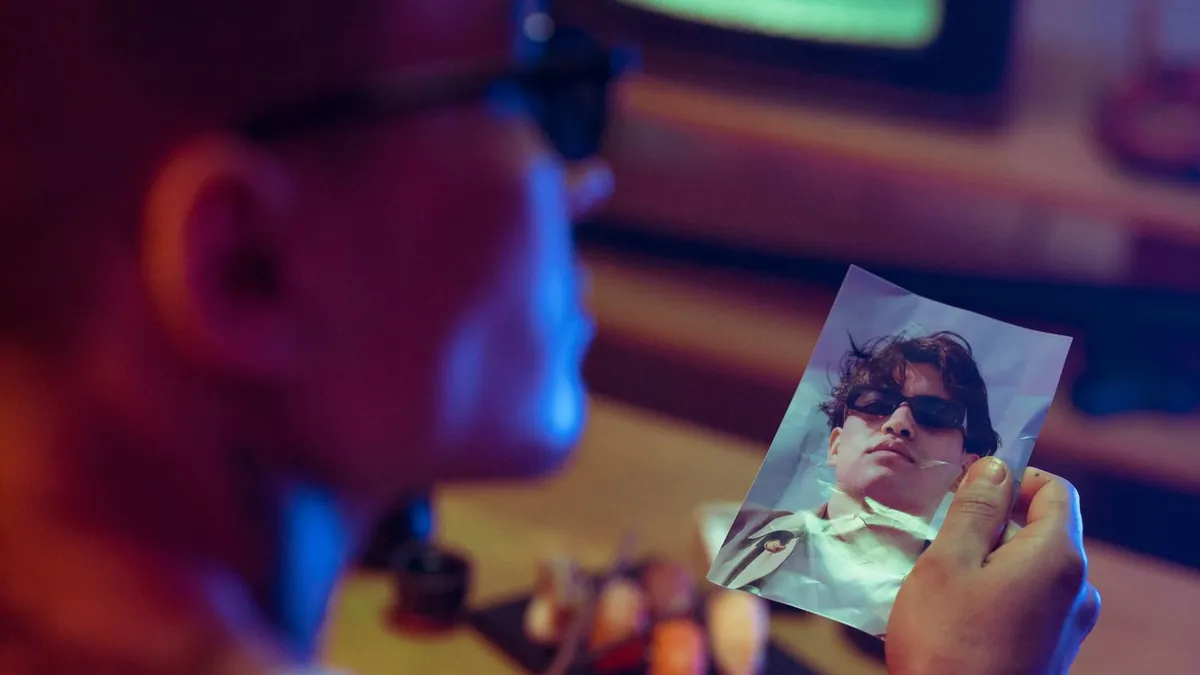
The usual giveaways are a hard cut-out edge where the subject meets the background, a background that darkens too evenly instead of falling off naturally, over-smoothed skin, or small warped details in hands and jewellery. A clearer, front-lit source photo fixes most of it.
The common tells
- Cut-out edge — a visible halo or hard line around the subject
- Flat background — evenly grey/black instead of a real light falloff
- Plastic skin — the model over-smoothed texture
- Warped small details — fingers, earrings, text, teeth
What fixes it
- Use a sharp, evenly-lit source — dark or backlit photos force the model to guess
- One clear subject beats a crowd
- Avoid heavy existing filters on the original
- Re-generate — results vary run to run; try two and pick the cleaner one
See what photo to use.
Set the right expectation
The flash look is meant to look like a real casual snapshot — a little rough is fine, even good. It shouldn't look like a polished studio composite. Making an AI flash photo look realistic goes deeper.
Related
Why real flash photos look bad too — some "fake" tells are actually accurate to how flash behaves.
Does regenerating actually help?
Yes — AI restyles have run-to-run variation. If one result has a warped hand or a hard edge, the next often doesn't. Generating two or three and choosing is normal.